
Connecting via QR Code
The AmneziaVPN app offers several ways to create a connection:
- entering a key — text that starts with
vpn://...,vless//...orss://... - importing a configuration file — file in
.confor.jsonformat - scanning a QR code
Below we describe creating a connection by scanning a QR code.
You need to prepare the QR code in advance — display it on another device.
- Open the AmneziaVPN app and tap ➕ (plus icon) or the Get Started button if you have no other connections.
- Select the QR code connection option and point the camera at the screen of another device where the QR code is displayed.
- When the QR code is scanned, tap Continue → Connect.
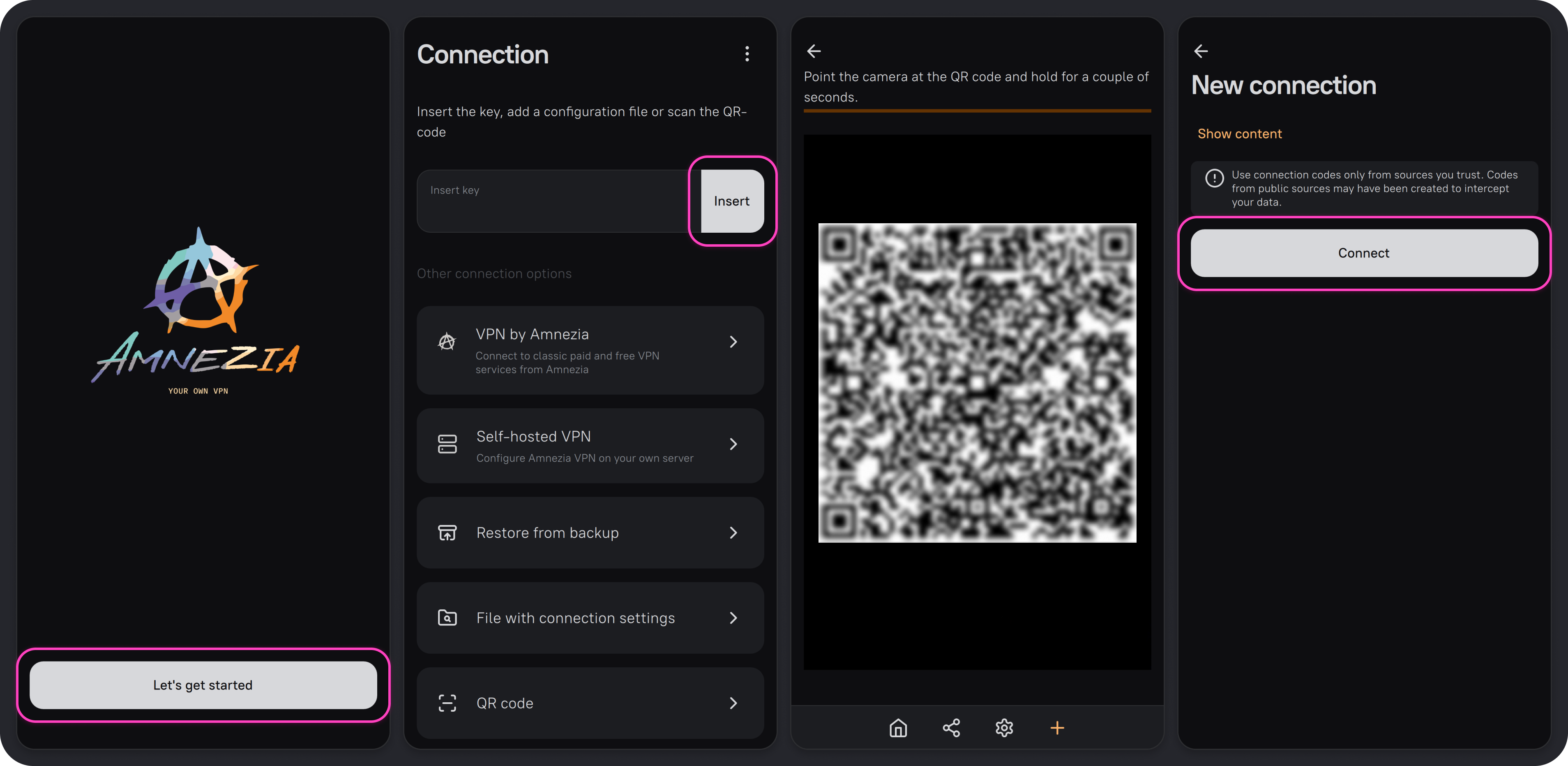
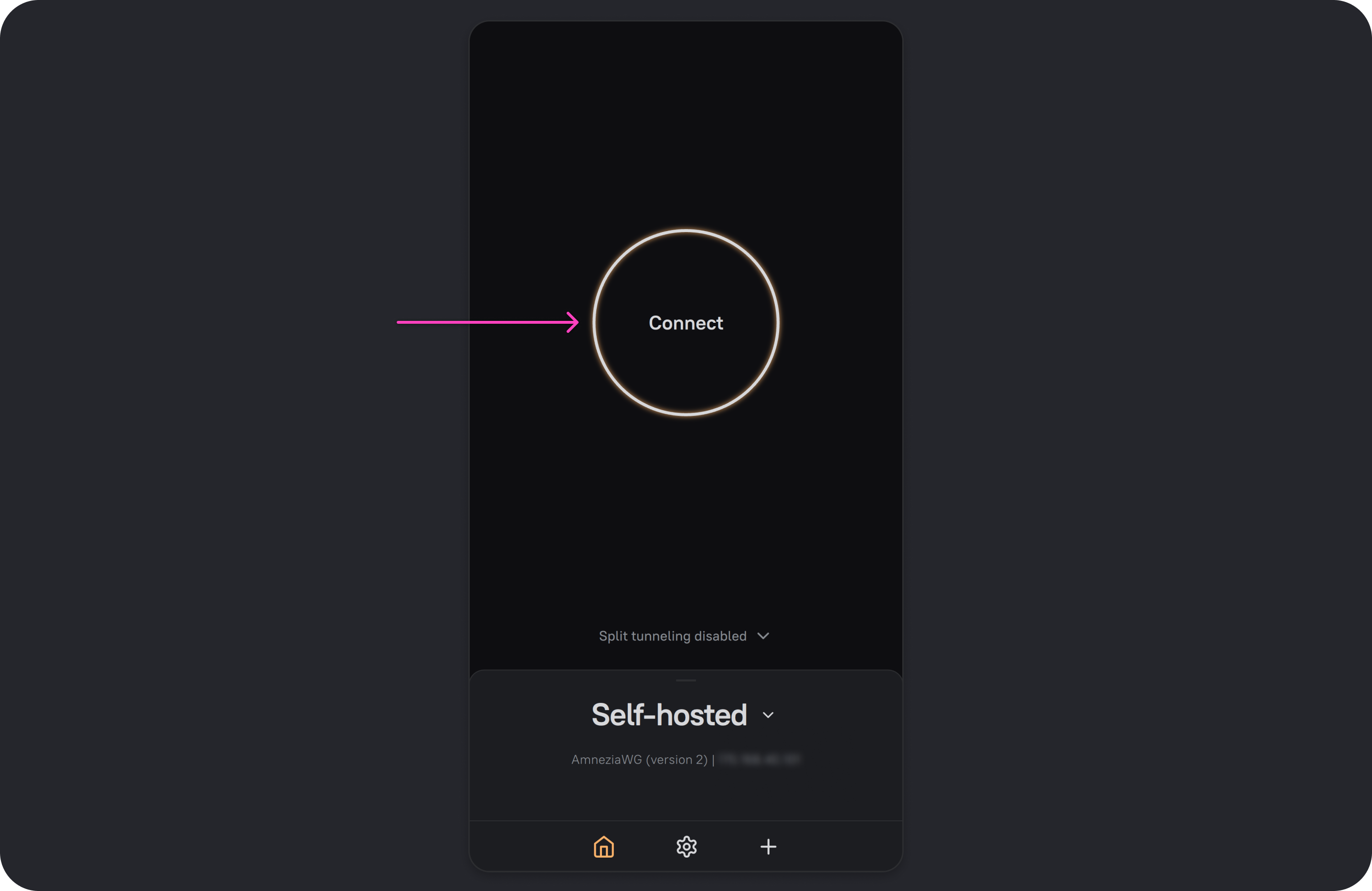
A new connection has been created — you can connect.
Where to get a QR code for connection:
- Amnezia VPN — in the personal dashboard (mirror)
- Amnezia Self-hosted — in the AmneziaVPN app, Share VPN section
Creating an Amnezia connection via QR code is not supported.
Do not use QR codes from public sources: they may have been shared with the intention of intercepting your personal data.